

Getting started
Pick a project. We’ll start there. Sodapop is an independent terminal coding companion powered by the GitHub Copilot SDK, with conversation, tool activity, approvals, and local project views in one interface.
Before you start
Section titled “Before you start”You need a supported computer, an interactive terminal, and a project directory. Using Copilot also requires network access and a GitHub account with eligible Copilot access under its organization policies. Signing in to GitHub and being allowed to use Copilot are separate steps.
Start with the download page for current availability. Public release and package-manager channels are enabled only when confirmed; a source checkout is not evidence that an installer is published. The installation guide covers platforms and first-launch checks. Contributors building from source should follow development.
Open your project
Section titled “Open your project”Got a project in mind? Change to its directory, then launch Sodapop:
cd /path/to/your/projectsodapopOn Windows, open your project directory in a terminal and run sodapop.exe.
Sodapop takes the current directory as its project; do not pass a project path
as a positional argument. Starting at the project root makes the intended
file-access boundary clear.
Start with /help or just / to find your way around. Local help, appearance, and
read-only Git diff views are useful even while signed out.
Sign in inside Sodapop
Section titled “Sign in inside Sodapop”- Run
/loginin the composer. - Choose persistent sign-in, or explicitly choose session-only sign-in.
- Follow the verification link and enter the device code shown by Sodapop.
- Authorize Sodapop in your browser, then return to the terminal.
- Wait for the separate Copilot connection result. Run
/modelto choose from the models available to your account.
Keep device codes private. A normal distributed application supplies Sodapop’s public-client configuration; end users do not need to register an OAuth app. If a development or incomplete build reports a missing client ID, see source-build configuration, rather than borrowing another application’s identity or tokens.
Persistent sign-in uses the operating system’s secure credential store. Session-only credentials last only for the running process. If sign-in or Copilot access fails, use troubleshooting.
Try one focused request
Section titled “Try one focused request”Start with something small: a question about the code or one focused task. Say what Sodapop should do and where it should stop. For example:
Explain how this project starts. Read the relevant files and suggest onesmall improvement, but do not change files yet.This is an example request, not a promised response. Read the streamed output and tool details, and review any permission request before deciding. Only eligible structured reads inside the project are approved automatically by default. Edits and shell commands still need your approval.
Not sure which direction to take? Run /fizz for a one-shot comparison of
approaches, risks, and trade-offs, or open /vending-machine to browse the
curated workflows. After a change, /taste-test asks for focused checks and
reports what passed, failed, and remains unverified. These workflows still use
the ordinary permission rules and do not guarantee that a change is correct.
Use /plan for an advisory planning focus, or press Shift+Tab to cycle Chat,
Plan, and Autopilot. Planning is not a read-only mode and does not replace
the permission policy.
Enter sends a message; Ctrl+J, Shift+Enter, or Alt+Enter inserts a newline.
Review and continue
Section titled “Review and continue”Use /diff to inspect the entire working tree, including changes that existed
before this conversation. Ctrl+C cancels active work; it does not undo edits.
Review what changed before deciding what to keep.
/clear starts a fresh conversation without deleting saved history. /resume
lists Sodapop conversations for the current account and project. Opening
Sodapop starts fresh; history is never resumed automatically.
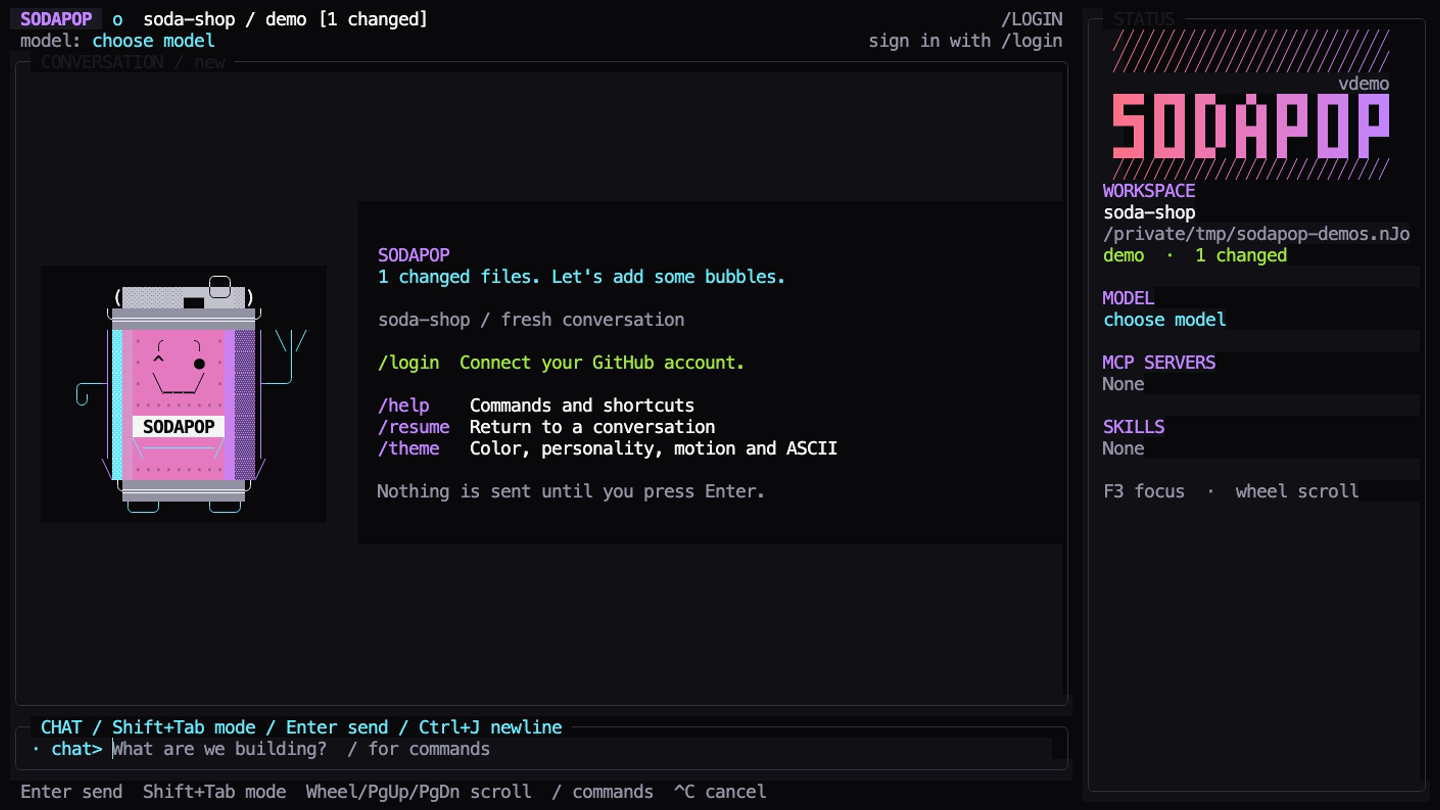
This still comes from a real, local, signed-out UI recording with prepared Git changes. It does not show or simulate an AI response.
Next, explore commands and shortcuts, customization, or permissions and privacy.